
Haven't installed it yet? v1.0.2 · ~28 MB · Windows 10/11
Download Tennis MonitorRequirements
- Windows 10 or 11 (64-bit)
- About 100 MB of free disk space
- Internet connection — scores come from public sources (ESPN and 365Scores)
- No need to install Python or any other dependency: everything is already bundled in the installer
Installing Tennis Monitor
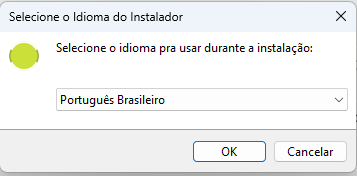
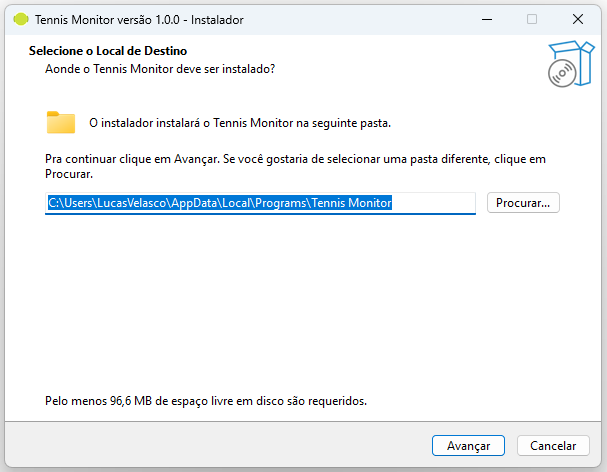
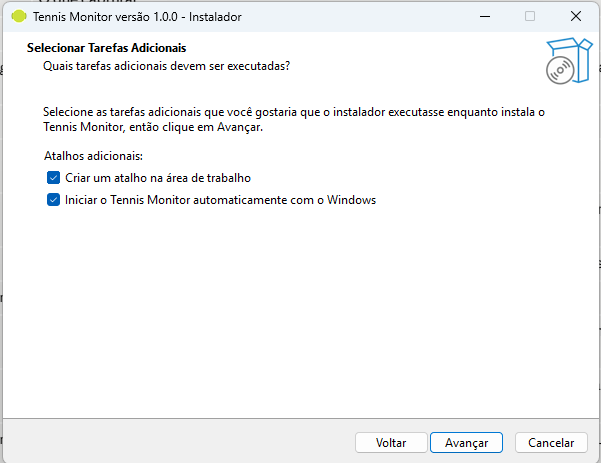
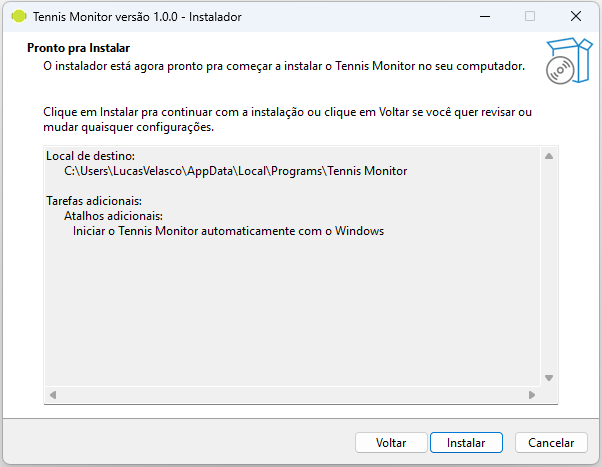
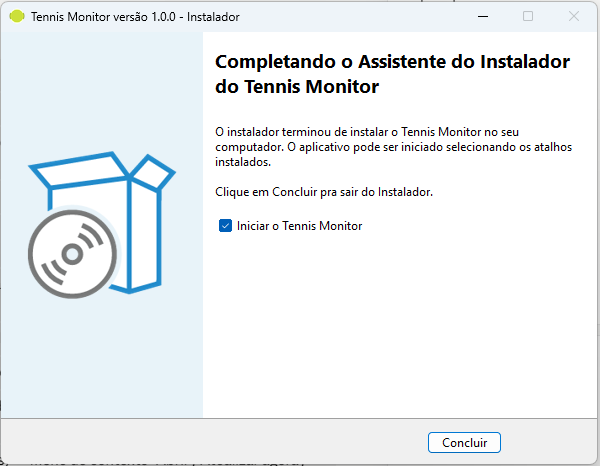
Double-click the TennisMonitorSetup.exe file and follow the wizard:
First launch
The first time you open Tennis Monitor, the list of players you can favorite already comes pre-loaded with hundreds of names from the pro circuit — you don't need to wait for any match to happen to be able to search for a player. Your favorites list, however, starts empty: you choose exactly who you want to follow.
The app appears in a compact panel and lives in the system tray (the tennis-ball icon, near the Windows clock). One click on the tray icon opens or closes the full panel.
Getting to know the interface
The main panel shows the day's matches, organized by tournament, with automatic updates every 15–30 seconds.
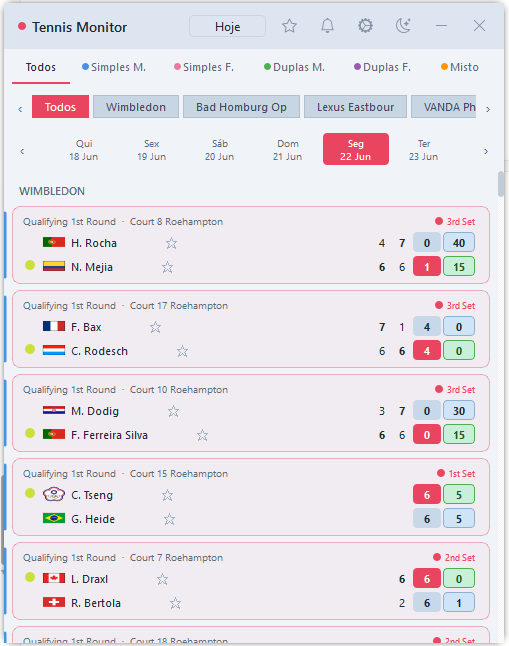
| Element | Function |
|---|---|
| Tabs (All / Singles M. / etc.) | Filters matches by category; each one has its own color |
| Tournament bar | Filters by a specific tournament, when more than one is active that day |
| Date chips | Navigates between the days of the tournament in progress |
| "Today" | Jumps straight back to the current date |
| Sun/moon icon | Switches between light and dark theme |
| ★ / 🔔 / ⚙ | Open the Favorites, Notifications, and Settings panels, respectively |
| − / □ | Collapses or expands the panel (see "Collapse, expand, and close" below) |
| × | Sends the panel to the tray — doesn't close the app (see "Collapse, expand, and close" below) |
Collapse, expand, and close
The panel can stay visible on screen at all times in a compact version, without taking up space or pulling focus from what you're doing: the "−" button collapses the window into a thin bar, with just the header icons; the "□" button expands it back, showing the matches, tabs, and the rest of the interface.
The "×" button, in the top-right corner of the header, does something different: it sends the entire panel to the system tray — the window disappears completely from the screen, but the app keeps running in the background, keeps fetching new scores, and keeps firing notifications normally. To bring the panel back, just click the tray icon (the tennis ball, near the Windows clock).
Collapsed window (discreet mode)
Besides collapsing it manually, the panel can also hide itself automatically against a screen edge, leaving only a thin strip behind — so it stays "nearby" without covering anything. This behavior is turned on in Settings → Collapsed window, with three options:
- Off (default) — the collapsed panel stays put wherever it was positioned, without hiding.
- Pin to top — the strip sits flush against the top edge, centered on the screen.
- Side tab — the strip sits flush against the right edge of the screen.
In either mode, just hover over the strip for the panel to slide out and appear in full; move the mouse away and it collapses again on its own after a moment. The app keeps updating scores and firing notifications normally while hidden against the edge — you don't need to reopen it for that.
Live scores
Each match card shows the sets already completed, the games in the current set, and, when the match is live, the point score (0 / 15 / 30 / 40 / Deuce). A yellow dot next to the name shows who's currently serving.

Favorite players
To closely follow a specific player, open the Favorites panel from the ★ icon in the header, type the name in the search box, and click the star next to the result. You can also favorite a player directly by clicking the star on any match card.
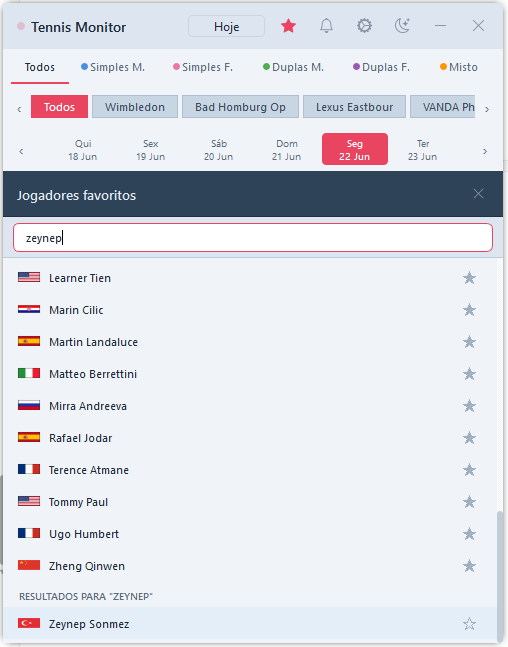
The search considers every player the app has ever seen on any date you've navigated to — so a player without a match today can still be found and favorited.
Notifications
Whenever something relevant happens in a favorite player's match, Tennis Monitor lets you know:
| Event | When it fires |
|---|---|
| Match started | The match moves from "scheduled" to "live" |
| Set finished | A new set is completed |
| Match finished | Final result, regular or walkover |
| Retirement | One of the players withdraws from the match |
| Match suspended / postponed | Temporary interruption or rescheduling |
| Match resumed | Play returns after a suspension |
| Break point | The receiver is one point away from breaking serve |
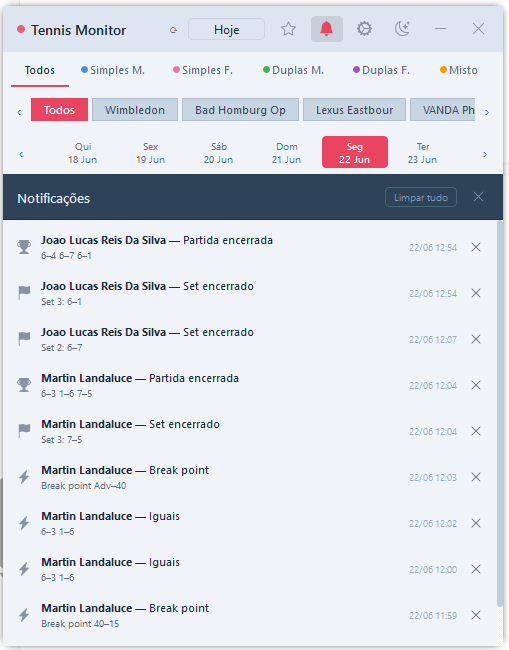
With the panel open, a banner slides in at the top of the list. With the panel in the tray, a badge on the bell icon shows how many notifications haven't been seen yet — and the history panel (🔔 in the header) keeps the last 10.
Settings
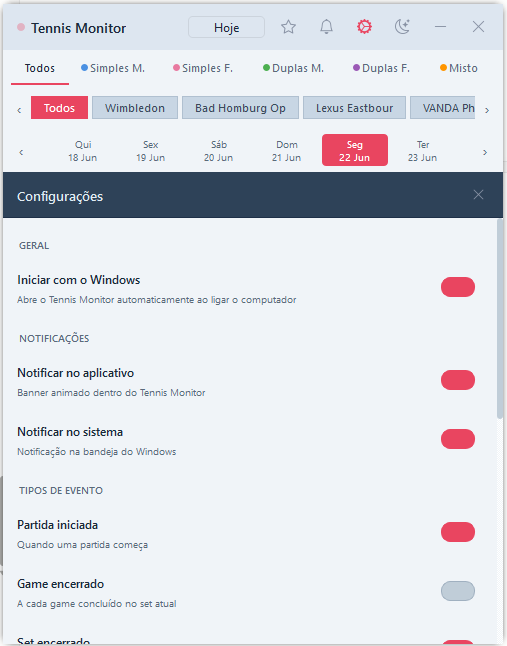
The Settings panel (⚙ in the header) brings together every app preference:
- Start with Windows — turns automatic startup on or off when the computer boots (the same option offered during installation, changeable here at any time).
- Notify in app / in system — controls whether alerts appear as a banner inside the app and/or as a native Windows notification.
- Event types — turns each notification type on or off individually (set finished, break point, etc.).
- Collapsed window — turns on discreet mode (hiding against the top or side edge of the screen); see "Collapsed window (discreet mode)" in the Getting to know the interface section.
- Language — switches the interface between Português and English; requires restarting the app to take effect.
System tray
Right-clicking the tray icon opens a quick menu:
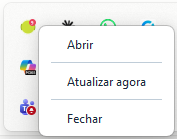
- Open — shows or hides the main panel.
- Refresh now — forces an immediate fetch of new scores, without waiting for the next automatic cycle.
- Quit — shuts down the app completely. It's the only way to truly close Tennis Monitor: the panel's "×" button and the collapsed window only hide it, keeping it running.
Frequently asked questions
Windows showed a warning when I opened the installer. Is that normal?
Yes. Since the installer doesn't have a digital signing certificate yet, Windows SmartScreen may show a security warning. Just click "More info" and then "Run anyway".
Where are my favorites and settings saved?
Everything is saved locally, in the folder: C:\Users\<your username>\.tennismonitor\
| File | Content |
|---|---|
| settings.json | Theme and notification preferences |
| watchlist.json | Favorite players |
| known_players.json | Accumulated list of players already seen |
| notification_history.json | Latest notifications |
How do I uninstall Tennis Monitor?
From the Control Panel or Settings → Apps, look for "Tennis Monitor" and select Uninstall — just like any other Windows program.
Scores aren't updating. What do I do?
Check your internet connection and use "Refresh now" from the tray menu. If the problem persists, close the app from the same menu and open it again.